
Quick Start Guide
Get up and running with ai.KMITL in just a few minutes! This guide will walk you through creating your account and sending your first message.
Step 1: Access the Platform
- Open your web browser
- Navigate to ai.kmitl.ac.th
- You'll see the landing page with information about the platform

Step 2: Sign In
ai.KMITL uses KMITL's LDAP authentication system for secure access.
- Click the "Sign In" or "Get Started" button
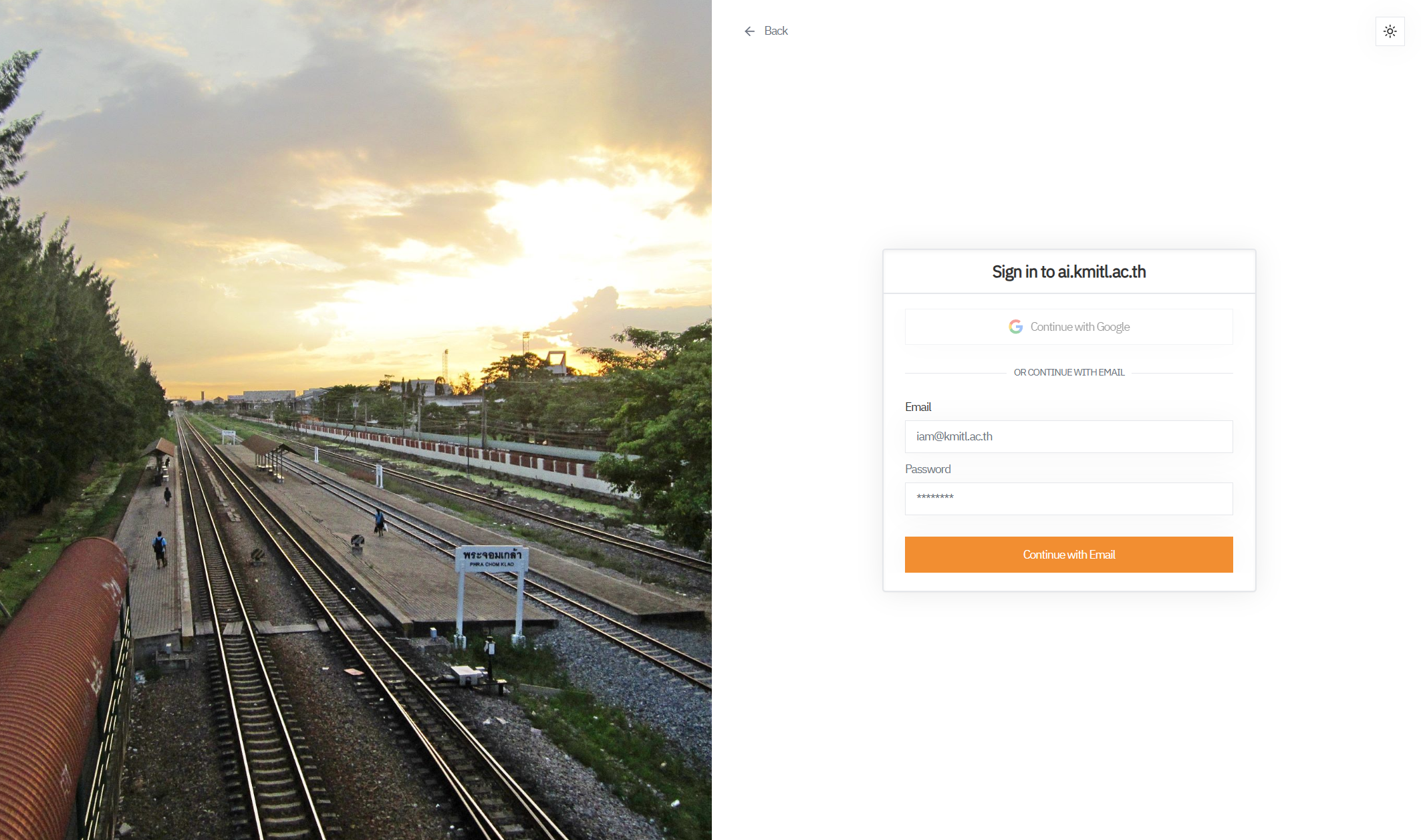
- Enter your KMITL credentials:
- Email: Your KMITL email
- Password: Your KMITL account password
- Click "Continue with Email"
First Time?
If this is your first time signing in, your account will be automatically created using your KMITL email address.
Authentication Issues
If you can't sign in:
- Make sure you're using your KMITL account credentials
- Verify your account is active
- Try resetting your password through KMITL's system
- Contact support if problems persist
Step 3: Explore the Interface
Once logged in, you'll see the main chat interface
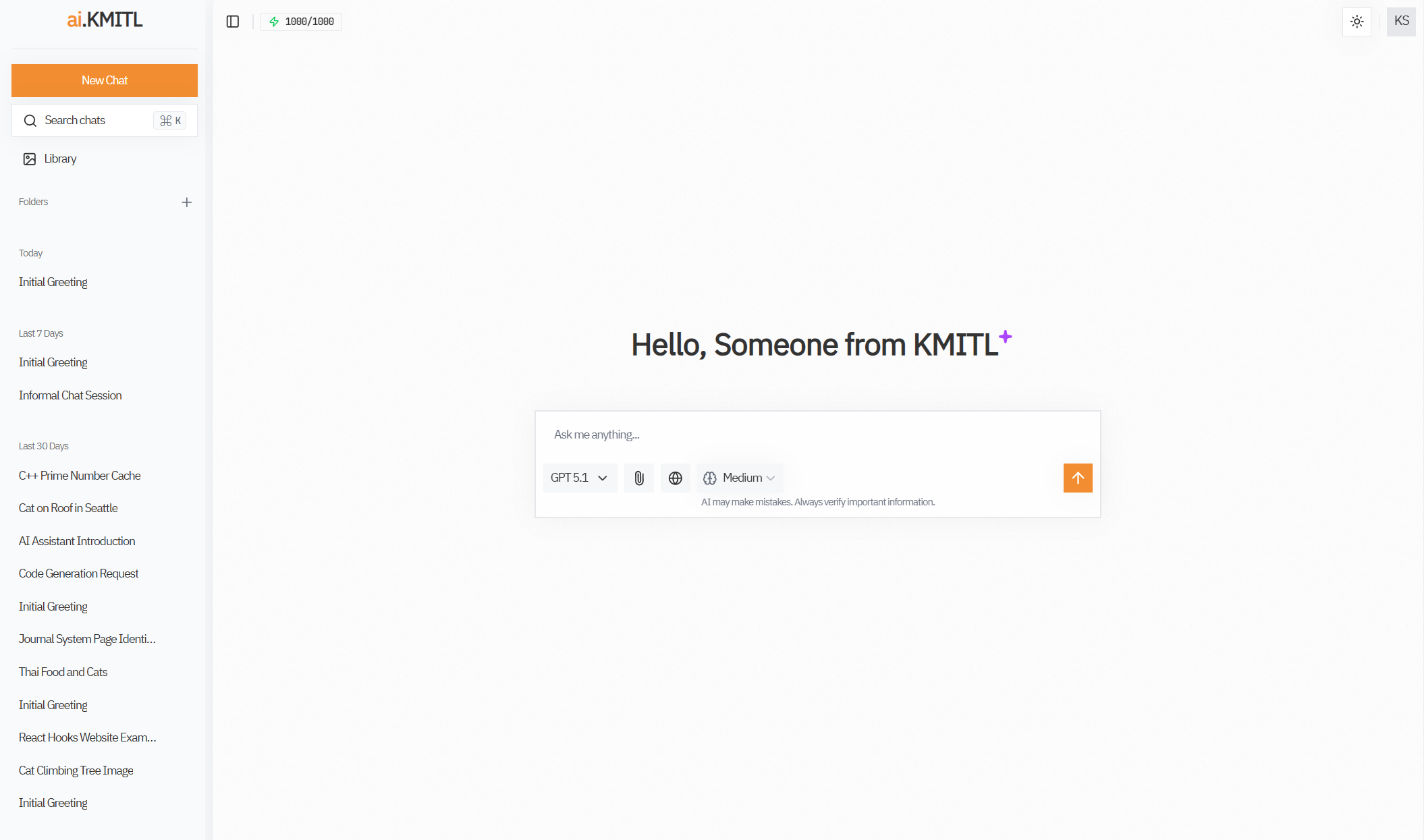
Top Navigation Bar
- ai.KMITL Logo - Click to return home
- Model Selector - Choose which AI model to use
- Tools Toggle - Enable/disable web search and other tools
- User Menu - Access settings, usage stats, and sign out
Left Sidebar (Desktop)
- New Chat - Start a fresh conversation
- Recent Threads - Your conversation history
- Folders - Organized project folders
- Usage Display - See your weekly usage quota percentage
Main Chat Area
- Message Input - Where you type your messages
- Attachment Button - Upload files
- Voice Input - Use speech-to-text
- Send Button - Submit your message
Right Panel
- Theme Switcher - Switch between light and dark mode
- Settings - Configure preferences
Step 4: Choose an AI Model
Before sending your first message, select an AI model
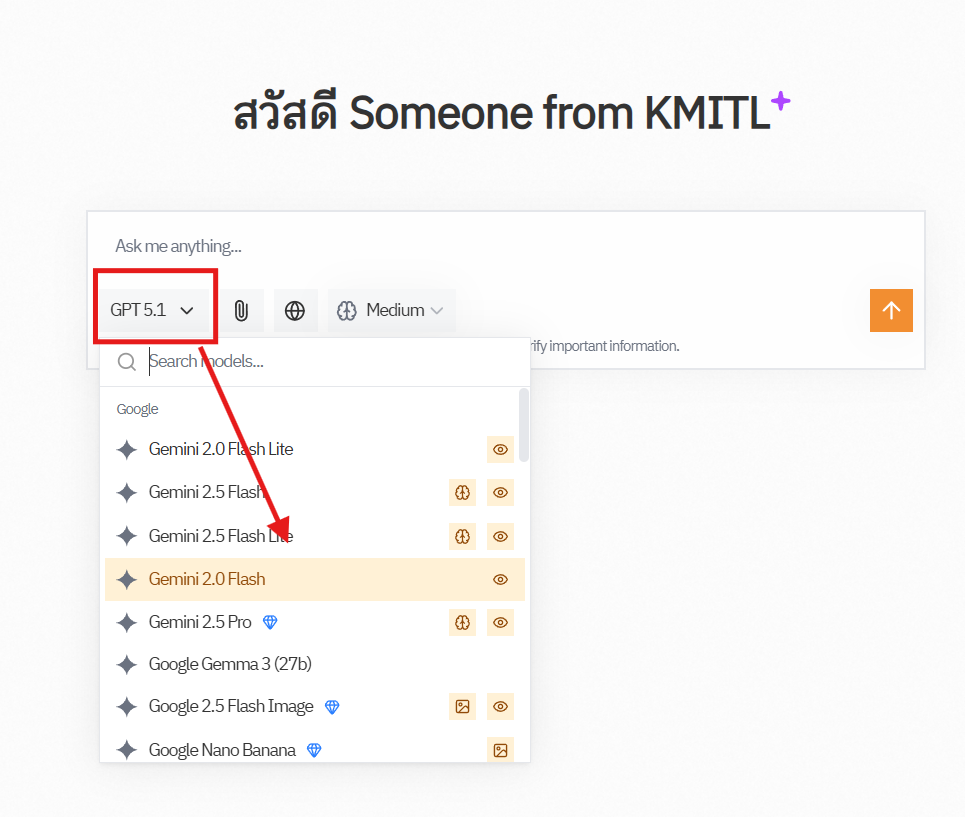
- Click the model selection in the chatbox.
- Browse available models:
- GPT-5 - Excellent for general purpose tasks
- Claude Sonnet - Great all-around model
- Gemini Flash - Fast responses
- Grok 4 - Creative and multimodal
- And more!
- Click on a model to select it
Not Sure Which Model?
Start with Gemeni 2.5 Flash, it's a great general-purpose model that handles most tasks well. You can always switch models later!
Step 5: Send Your First Message
Now for the fun part. let's chat with AI!
- Click in the message input box
- Type your message or question
- Press Enter or click the Send button
Example First Messages
Try one of these:
Hello! Can you tell me what you can help me with?I need help understanding linear algebra. Can you explain eigenvalues?Write me a Python function that sorts a list of numbersWhat's the latest news about AI?Don't forget to enable web search!
Before sending your message that required current real world information, make sure to enable web search in the tools toggle.
Step 6: Enable Web Search
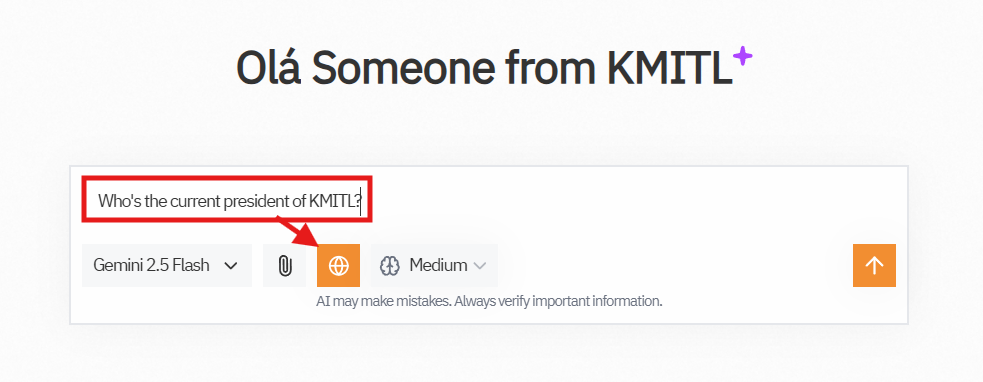
To enable Web Search, simply click the Globe icon located in the chat toolbar below the message input box.
- When web search is enabled, the Globe icon will appear highlighted (see image above).
- If the button appears gray, web search is currently disabled.
Enabling web search allows the AI to access up-to-date information and answer questions about recent news, current events, or anything beyond its training data.
You can toggle this feature on or off at any time before sending your message.
Step 7: Try Advanced Features
Once you're comfortable with basic chat:
Upload a File
- Click the attachment button (📎)
- Select an image, PDF, or document
- Ask questions about the file
Use Voice Input
Voice Input is not available
Voice Input is not currently avaiable due to security reasons
- Click the microphone button (🎤)
- Allow microphone access if prompted
- Speak your message
- Click stop when done
Create a Folder
- Click "New Folder" in the sidebar
- Name your folder (e.g., "Math Homework", "Coding Projects")
- Your current chat will be moved to this folder
Format Your Messages
Use markdown for better formatting:
**Bold text**
_Italic text_

- Bullet points

1. Numbered lists

# Headings
Use LaTeX for math:
Inline math: $$E = mc^2$$

Block math:
$$
\int_0^\infty e^{-x^2} dx = \frac{\sqrt{\pi}}{2}
$$
Common First-Time Questions
How do I start a new conversation?
Click "New Chat" in the sidebar.
Can I see my previous conversations?
Yes! All your conversations are saved in the sidebar under "Recent Threads" grouped by last conversation date.
What if I run out of usage quota?
You have a generous weekly platform usage quota. Check the percentage remaining in the top-right. If you need more, consider adding your own API key (BYOK) or contact support.
How do I change models mid-conversation?
Just select a different model from the model selector. The new model will continue the conversation with context from previous messages.
Is there a mobile app?
The web interface works great on mobile browsers! Just visit ai.kmitl.ac.th on your phone.
Next Steps
Now that you're set up:
- 📖 Learn about AI Models and their strengths
- 💬 Explore the Chat Interface in detail
- 🎯 Read Writing Great Prompts for better results
- 🔍 Discover Tools & Features
Need Help?
Pro Tip
The AI responds better to clear, specific questions. Instead of "help me with math", try "Can you explain how to solve quadratic equations step by step?"
Happy chatting! 🚀