
Chat Interface
The ai.KMITL chat interface is designed to be intuitive, powerful, and feature-rich. This guide covers everything you can do with the interface.
Interface Overview
Main Components
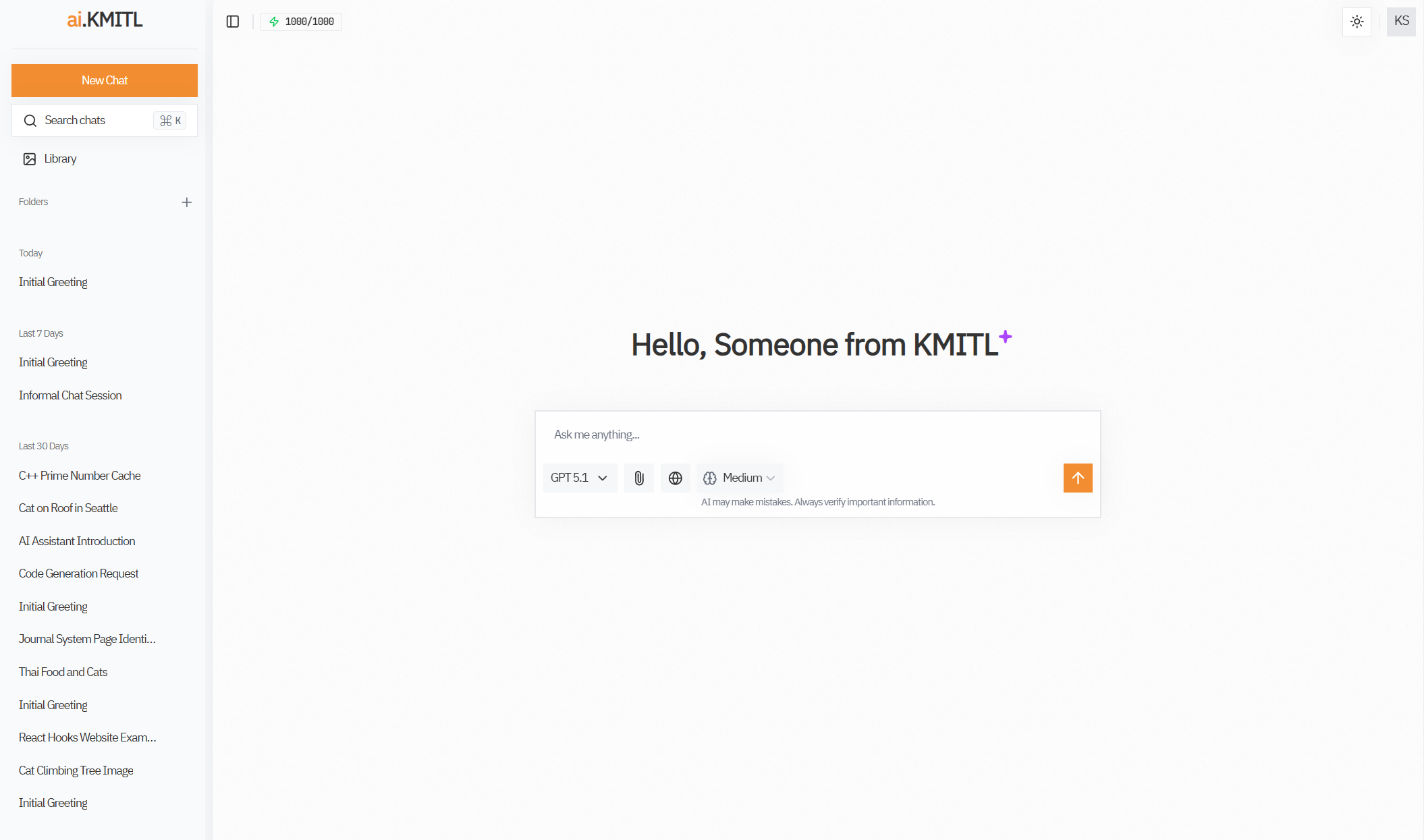
Message Input
Text Input
The message box at the bottom is where you type:
- Click in the input area
- Type your message
- Press Enter to send (or Shift+Enter for new line) Or click the Send button
Text Formatting
Markdown Support
ai.KMITL supports full markdown formatting:
Basic Formatting:
**bold text**
_italic text_
~~strikethrough~~
`inline code`
Lists:
- Bullet point 1
- Bullet point 2
  - Nested point

1. Numbered item
2. Another item
Headings:
# Large Heading

## Medium Heading

### Small Heading
Links:
[Link text](https://example.com)Code Blocks:
```python
def hello():
    print("Hello, World!")
```
LaTeX Math Support
For mathematical equations:
Inline Math:
The formula is $$E = mc^2$$ for energy.Block Math:
$$
\int_0^\infty e^{-x^2} dx = \frac{\sqrt{\pi}}{2}
$$
Complex Equations:
$$
\begin{align}
f(x) &= x^2 + 2x + 1 \\
     &= (x + 1)^2
\end{align}
$$
Math Rendering
Math is rendered beautifully using KaTeX. Both inline and block math are supported!
File Attachments
Supported File Types
- Images: JPG, PNG, GIF, WebP, SVG, BMP
- Documents: PDF, Word (
.docx), Excel (.xlsx), TXT, MD - Code: Most programming languages (JS/TS, Python, Java, C/C++, Go, Rust, SQL, shell, and more)
- Data: CSV, TSV, JSON, XML, YAML, TOML
Word & Excel
Word and Excel files are converted to text before being sent to the AI. Very large documents are automatically summarized to fit the context window — you'll see a note in the response when this happens. Legacy formats (.doc, .xls) are not supported; please re-save as .docx/.xlsx.
How to Attach Files
- Click the 📎 attachment button next to the message input
- Select one or more files from your device
- Wait for upload to complete (you'll see a preview)
- Add a message describing what you want to know
- Send
File Size Limits
- Maximum file size: 5 MB per file
- Maximum files per message: 3 files
- Large files may take longer to process
What You Can Do with Files
Images:
- "What's in this image?"
- "Transcribe the text from this screenshot"
- "Analyze this diagram"
- "Fix the code in this image"
PDFs:
- "Summarize this document"
- "Find information about X in this PDF"
- "Translate this document to English"
- "Extract data from this form"
Code Files:
- "Review this code"
- "Find bugs in this file"
- "Explain what this code does"
- "Optimize this function"
Privacy Note
Files are processed securely and not stored permanently. They're used only for the current conversation.
Voice Input
Using Speech-to-Text
Voice Input is not available
Voice Input is not currently avaiable due to security reasons
- Click the 🎤 microphone button
- Allow microphone access (first time only)
- Speak your message clearly
- Click Stop when finished
- Review the transcribed text
- Edit if needed and send
Voice Input Tips
- Speak clearly at normal pace
- Minimize background noise for accuracy
- Use punctuation words: "period", "comma", "question mark"
- Edit the transcript before sending if needed
Best Use Cases
- Quick questions while multitasking
- Long messages that are faster to speak
- Accessibility needs
- Mobile device use
Message Display
Viewing Responses
AI responses appear in the chat with:
- Markdown rendering: Formatted text
- Code highlighting: Syntax-colored code blocks
- Math rendering: Beautiful equations
- Clickable links: Direct navigation
Code Blocks
Code in responses includes:
- Syntax highlighting for many languages
- Copy button in the top-right corner
- Line numbers (optional)
- Language label
Example:
def fibonacci(n):
    if n <= 1:
        return n
    return fibonacci(n-1) + fibonacci(n-2)
Copying Content
- Copy button appears on hover over code blocks
- Select text to copy any part manually
- Right-click for context menu options
Message Actions
Edit Your Message
- Hover over your sent message
- Click the Edit button (✏️)
- Modify the text
- Press Enter to resend
Edit Effect
Editing regenerates the AI's response based on your new message. The conversation continues from that point.
Retry Generation
If you're not satisfied with a response:
- Hover over the AI's message
- Click Retry (🔄)
- The AI will generate a new response
Retry Another Models
Users can retry using a different model by selecting a new model in the model selector before pressing the Retry button. The new response will use the currently selected model.
Pro Tip
When you want to compare how different models answer the same question, simply using branch-off button to duplicate the conversation and retry using a different model.
Conversation Management
Viewing Chat History
- All conversations are saved automatically
- Access Recent Threads in the left sidebar
- Threads show first message as title, grouped by last conversation date.
- Click any thread to open it
Thread Names
Threads are automatically named based on:
- Your first message
- AI-generated title
- You can rename threads manually
Searching Conversations
Use the search function to find:
- Specific conversations titles
- Keywords in messages
Keyboard Shortcuts
Essential Shortcuts
| Action | Windows/Linux | Mac |
|---|---|---|
| Send message | Enter | Enter |
| New line | Shift+Enter | Shift+Enter |
| Search | Ctrl+K | Cmd+K |
Conversation Context
How Context Works
The AI remembers your conversation:
- Previous messages provide context
- Uploaded files stay in context
- Switched models receive full history
- Context limit depends on model
When you exceed the limit, older messages are automatically removed from the conversation context.
Managing Context
Keep context relevant:
- Start new chat for new topics
- Summarize long conversations
- Use folders to organize by topic
Special Features
Streaming Responses
Responses stream in real-time:
- See the AI "thinking"
- Get faster perceived results
- Can stop generation early
Stop Generation
If a response is taking too long:
- Click the Stop button
- The AI stops immediately
- You keep the partial response
Regenerate
Don't like a response?
- Click Regenerate
- Get a different answer
- Compare versions
Mobile Experience
Mobile Interface
On mobile devices:
- Sidebar collapses to hamburger menu
- Swipe to navigate threads
- Touch to interact with messages
- Responsive design adjusts automatically
Mobile Tips
- Use voice input for easier typing
- Landscape mode for more space
- Share feature to export conversations
- Works on all modern mobile browsers
Tips for Best Experience
General Tips
- Be specific in your questions
- Use formatting to structure complex questions
- Attach files when relevant
- Enable web search for current info
- Try different models for different tasks
Performance Tips
- Close unused threads to free memory
- Start new chats for new topics
- Limit file sizes for faster uploads
- Use faster models for simple questions
Organization Tips
- Use folders to group related chats
- Name threads descriptively
- Delete old conversations you don't need
- Export important conversations
Master the Interface
The more you use ai.KMITL, the more efficient you'll become. Experiment with features and find your workflow!
Next Steps
- Learn about Web Search & Tools
- Organize with Project Folders
- Improve results with Great Prompts